


How to identify the USB 3.0 interface of a computer?
Sep 28, 2026
The USB3.0 interface of a computer can be identified by observing the color of the connector, the number of copper plates, or the system device manager.

Here are the specific methods and additional information:
1. Physical Feature Identification
Color distinction: The internal plastic pieces of the USB3.0 interface are usually blue, while those of USB2.0 are mostly black or white. This method is applicable to most mainstream devices, but it should be noted that some manufacturers may not strictly follow the color standards.
Number of copper plates: When viewing the interface in a bright environment from the side, two rows of contacts can be seen inside the USB3.0 interface: 5 small copper plates (close to the outer side of the interface) in the front row and 4 large copper plates in the rear row; USB2.0 only has 4 large copper plates in the rear row. This method requires careful observation. Some interfaces may have difficulty distinguishing the contacts due to design differences.
2. System Software Verification
Windows system:
Right-click "This PC" and select "Properties", then enter "Device Manager".
Expand "Universal Serial Bus Controllers", look for devices with "USB 3.0 Extended Host Controller" or "xHCI" (such as names of Intel, Renesas, etc.). If such devices exist, it indicates that the motherboard supports USB3.0.
Interface quantity statistics: Through the device manager, you can view all USB controllers, and combine the physical interface color (blue) to confirm the actual quantity. Some motherboards may disable some USB3.0 interfaces through BIOS settings, so check the BIOS configuration.
3. Core Characteristics of USB3.0 Interface
Transmission speed: The theoretical bandwidth reaches 5 Gbps, which is 10 times that of USB2.0 (480 Mbps). The actual speed is affected by factors such as device performance and file type. For example, when transferring a 10 GB file, USB3.0 takes approximately 20 seconds, while USB2.0 takes about 3 minutes.
Compatibility:
Downward compatibility with USB2.0/1.1 devices, but the speed will be reduced to the highest specification supported by the device (such as the speed when connecting a USB2.0 hard drive is 480 Mbps).
Supports hot plugging, allowing devices to be plugged in or removed without restarting.
Power supply capacity: The maximum output current is increased to 900 mA (USB2.0 is 500 mA), providing stable power for high-power devices such as portable hard drives, reducing the need for external power sources.
4. Expansion and Upgrade Solutions
Computers without USB3.0 interface:
Desktop: Upgrade through a PCI-E to USB3.0 expansion card, the price is approximately 50-200 yuan, and confirm that the motherboard has free PCI-E slots.
Laptop: Use an ExpressCard to USB3.0 expansion card (if the laptop supports ExpressCard interface), or an external USB3.0 hub (connected through a USB2.0 interface, but the speed is limited).
Interface conversion limitations: USB2.0 interfaces cannot be converted to USB3.0 through software or hardware because their physical layer protocols are different. If high-speed transmission is required, a native USB3.0 interface or expansion card must be used.
5. Common Questions and Answers
The relationship between Type-C and USB3.0: Type-C is the physical form standard of the interface, supporting USB3.0/3.1/3.2 protocols. Some Type-C interfaces only support USB2.0 speed, need to confirm the actual specification through the device manager or interface identification.
Mobile phone USB3.0 interface: Some Android phones (such as Samsung Galaxy S5) once had USB3.0 interfaces (Micro-B 3.0 form), but due to cost and thickness issues, they were not widely adopted. Modern phones mostly use Type-C interfaces, supporting USB3.1/3.2 protocols, with faster speed.
Lenovo Computer Support Information: Lenovo desktops (such as the ThinkCentre series) have gradually adopted USB 3.0 interfaces since 2012. These interfaces can be confirmed through the device manager or by checking the interface color. Some older models may require upgrading the motherboard or using an expansion card.
6. Usage Suggestions
High-speed device pairing: When using USB 3.0 interfaces, ensure that the devices (such as external hard drives, USB flash drives) support the USB 3.0 protocol; otherwise, the speed cannot be improved.
Driver updates: Some older computers may need to install the USB 3.0 drivers provided by the motherboard manufacturer (such as Intel USB 3.0 Extensible Host Controller Driver) to optimize performance.
Cable selection: Prefer to use original or USB-IF certified USB 3.0 data cables. Poor-quality cables may result in reduced speed or unstable connections.
You Might Also Like
-

OEM USB2.0 A Female To Spring 5pin Terminal Block Adapter
-

Mini USB 2.0 Male To RS232 DB9 Female Extension Lead Cable
-

2 in 1 USB-C Adapter To Headphone Jack Aux Audio Splitter...
-

USB 3.0 HUB 6 Port Supports Simultaneous Use Of 7 USB Ports
-
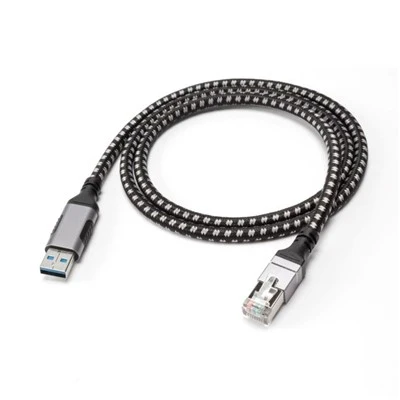
USB3.0 A To RJ45 Ethernet Cable Braided
-

PD240W Retractable USB C Flat Fast Charging Cable For Mob...