

How do I know if my device supports USB 2.0?
Oct 09, 2025
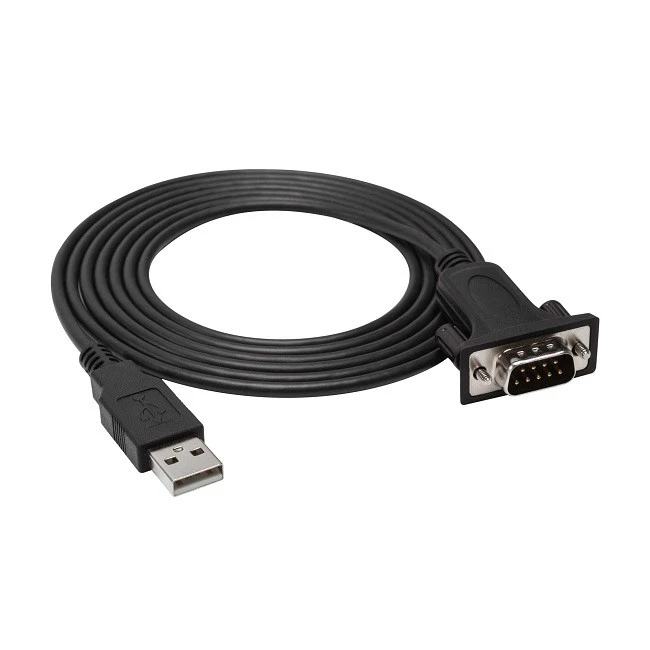
As a USB 2.0 supplier, I often receive inquiries from customers who are unsure whether their devices support USB 2.0. This is a crucial question, as it determines the compatibility and functionality of various USB 2.0 products we offer, such as the Micro USB2.0 BM To 5pins Terminal Block Adapter Cable With Push Button, 12-in-1 USB-C Hub Docking Station With Ethernet/USB3.0/PD/HDMI/VGA/SD/TF Card Readers/3.5mm Port, Compatible With Type C Devices, and USB To DB9 RS232 Serial Adapter Converter Cable With FTDI Chip. In this blog post, I'll share some practical ways to figure out if your device is USB 2.0 compatible.
Check the Device Specifications
The first and most straightforward method is to refer to the device's official documentation. This could be the user manual that came with the device, or you can visit the manufacturer's website and look for the product specifications page. Usually, the supported USB standards are clearly listed there. For example, if you have a laptop, you can find the USB details in the "Ports" or "Connectivity" section of the product specs. Look for terms like "USB 2.0," "Hi-Speed USB," which is another term for USB 2.0, or the data transfer rate associated with USB 2.0, which is up to 480 Mbps.

If you're dealing with an older device, the manual might not be readily available. In that case, try searching for the device model number along with "USB 2.0 support" on search engines. You'll likely find user forums or tech websites where people have discussed the USB capabilities of that particular device.
Examine the USB Ports
Physically inspecting the USB ports on your device can also give you some clues. USB 2.0 ports typically have a black or white plastic insert inside the port. In contrast, USB 3.0 ports usually have a blue insert. This color - coding is a simple visual indicator that many manufacturers follow. However, keep in mind that this isn't a foolproof method, as some devices might not adhere to this color - coding standard.
Another thing to look for is the shape and size of the port. USB 2.0 uses the standard Type - A, Type - B, and Mini - USB and Micro - USB connectors. If your device has these types of connectors, it's a good sign that it might support USB 2.0. But again, having the right connector doesn't guarantee USB 2.0 support, as some devices might use the same connector for a different USB standard.
Use System Information Tools
For computers, both Windows and macOS have built - in system information tools that can help you determine USB support.
Windows
On Windows, you can use the Device Manager to check the USB controller details. Here's how:
- Press the Windows key + X and select "Device Manager" from the menu.
- Expand the "Universal Serial Bus controllers" category.
- Look for entries related to USB 2.0. You might see names like "USB 2.0 Enhanced Host Controller" or something similar. If you find such entries, it means your computer has the hardware support for USB 2.0.
macOS
On a Mac, you can use the System Information tool:
- Click on the Apple menu and select "About This Mac."
- Click on "System Report."
- In the left - hand sidebar, select "USB."
- The report will show you details about each USB device and controller connected to your Mac, including whether they support USB 2.0.
Test with a USB 2.0 Device
One of the most practical ways to confirm USB 2.0 support is to test your device with a known USB 2.0 device. You can use a USB 2.0 flash drive, for example. Connect the USB 2.0 device to your device's USB port. If the device is recognized and you can transfer data, it's likely that your device supports USB 2.0.
To further verify the USB 2.0 speed, you can perform a simple data transfer test. Copy a large file (at least a few hundred megabytes) from your device to the USB 2.0 device and note the transfer time. USB 2.0 has a maximum data transfer rate of 480 Mbps, which in real - world scenarios, translates to a transfer speed of around 30 - 60 MB/s. If your transfer speed is in this range, it's a strong indication that your device is communicating with the USB 2.0 device at the appropriate speed.
Consider the Device Age
The age of the device can also give you an idea about its USB support. USB 2.0 was introduced in 2000 and became the standard for many years. Devices manufactured between the early 2000s and the mid - 2010s are very likely to support USB 2.0. However, more recent devices might have moved on to USB 3.0 or higher standards, but they usually maintain backward compatibility with USB 2.0.
If you have a very old device, say from the late 1990s, it might only support USB 1.1, which has a much lower data transfer rate (12 Mbps). In that case, it might not be able to communicate properly with USB 2.0 devices.
Conclusion
Determining whether your device supports USB 2.0 involves a combination of checking the device specifications, physically inspecting the ports, using system information tools, conducting tests with USB 2.0 devices, and considering the device's age. By following these steps, you can be more confident about your device's USB 2.0 compatibility.
If you've determined that your device does support USB 2.0 and you're in the market for high - quality USB 2.0 products, we're here to help. We offer a wide range of USB 2.0 solutions, including the ones mentioned earlier in this post. Whether you need an adapter for a specific application or a docking station to expand your device's connectivity, our products are designed to meet your needs.
If you're interested in our USB 2.0 products, we encourage you to reach out for procurement and further discussions. We're always ready to provide you with detailed product information, technical support, and competitive pricing.
References
- USB Implementers Forum. (n.d.). USB 2.0 Specification. Retrieved from the official USB - IF website.
- Various tech blogs and user forums where device - specific USB support discussions take place.